
You've got three real ways to embed products in a Shopify blog post: the Shopify Buy Button, a metafield-driven blog template, or a dedicated blog/product editor app. The Buy Button gets you a checkout-ready embed in minutes but needs manual updates. Metafields plus a custom template give you a native, maintainable setup that stays on-brand. An editor app costs more but handles high-volume publishing with the least friction. Here's how to set up each one.
TL;DR:
- Using a single Buy Button per post reduces page load time and simplifies manual updates for price or stock changes.
- Metafield-based product embeds provide a native, maintainable, and on-brand solution for one featured product per post without code editing.
- Embedding multiple products or inline "shop this" links typically requires third-party apps or specialized editors to streamline content creation.
- Overloading blog posts with numerous product embeds can significantly slow page speed and harm SEO performance if not properly optimized.
- An integrated editor like BlockPress offers in-editor product references and analytics, making frequent publishing more efficient without technical complexity.
Table of Contents
- How Do You Embed Products in a Shopify Blog With the Buy Button?
- Setting Up Metafields and a Custom Blog Template
- When Should You Use an App Instead of Building It Yourself?
- Performance and SEO Checklist for Product Embeds
- What BlockPress Adds for Merchants Embedding Products
- Which Method Fits Your Store?
- Try an Editor Built for Shopify Content and Commerce
- Sources
- FAQ
How Do You Embed Products in a Shopify Blog With the Buy Button?
The Shopify Buy Button generates a self-contained product card with its own checkout, and you paste the resulting code directly into a blog post. Shopify hosts the button, so the cart syncs back to your order dashboard even though the purchase technically happens outside your storefront theme.
Here's the process:
- In your Shopify admin, go to Sales channels → Buy Button.
- Select the product or collection you want to feature, then click Select product.
- Customize the layout, color, and text under the Customize tab.
- Click Generate code and copy the HTML snippet.
- Open the blog post editor, switch to the Show HTML view (the
<>icon), and paste the code where you want the card to appear. - Preview on mobile before publishing. Buy Button cards can render narrow or clipped on smaller screens depending on your theme's content width.
The catch: the embed is a snapshot. If you change the price, swap the image, or the product sells out, you have to edit the post manually because it won't pull live changes the way a native block would. Heavy or repeated Buy Button embeds on one page can also add load time, since each one pulls its own script.
Pro Tip: Keep one Buy Button per post whenever possible. Stacking multiple Buy Buttons on a single article multiplies script calls and can slow the page more than the sales lift is worth.
Setting Up Metafields and a Custom Blog Template
This is the method Shopify merchants land on when they want product embeds that feel native instead of bolted on, and it doesn't require an app. The idea: attach a product reference to each blog post through a metafield, then build a template section that displays whatever product that metafield points to.
Here's the setup:
- Go to Settings → Custom data → Blog posts and click Add definition.
- Name it something like "Featured product," set the type to Product reference, and save.
- In the theme editor, duplicate your blog post template rather than editing the default one. This keeps the featured product block from showing up on posts where you never intended one, and it makes future theme updates safer, since you're not touching Shopify's default files directly.
- Add a Featured product section to the duplicated template and set its dynamic source to the metafield you just created.
- Assign the new template to individual posts under the post's Template setting in the editor sidebar.
A few practical notes worth flagging:
- Community workflows for this exact setup are well documented on the Shopify forums, including sample liquid for conditional display.
- Use a simple liquid or CSS condition to hide the section entirely when a post has no product assigned, so you never publish an empty box where a product card should be.
- Add to cart functionality depends on your theme's featured product section supporting it. Most modern Shopify themes do, but older or heavily customized themes might only show a "View product" link.
Pro Tip: Test the empty state before you launch this across your blog. An unfinished conditional check is the fastest way to end up with gray placeholder boxes on old posts.
When Should You Use an App Instead of Building It Yourself?
Metafields work well for one featured product per post. They get clunky fast when you want three or four products woven through the body text, comparison tables, or inline "shop this" cards next to specific paragraphs.
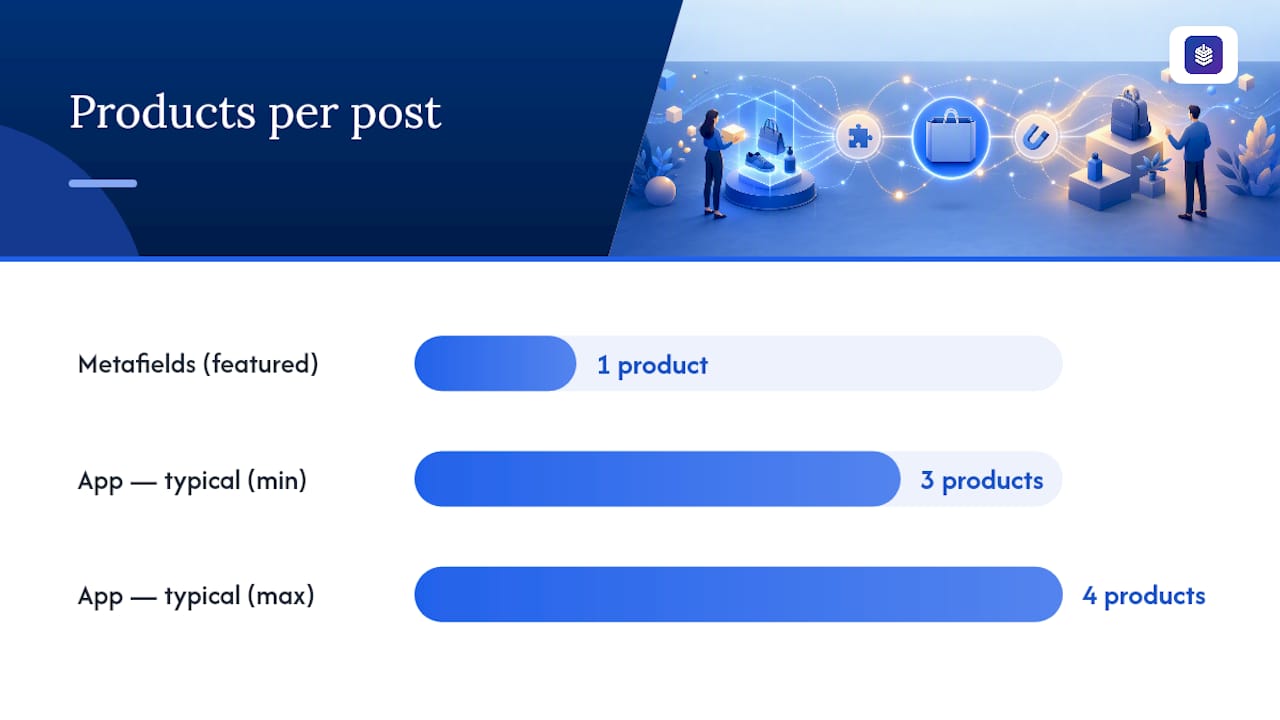
That's the gap third-party blog editors and product-block apps fill. Shopify's own blog editor has no built-in product block, which is exactly why merchants have leaned on metafields or third-party tools to connect posts to product data for years.
What these apps typically add:
- A product picker you can drop into the body of a post, mid-paragraph, without touching code.
- Inline add-to-cart buttons and variant selectors (size, color) instead of a plain link.
- Reusable templates for recurring formats like "roundup" posts or gift guides.
- Some form of sync between the blog editor and your product catalog, so swapping a featured product doesn't mean re-editing liquid.
Editor apps and platforms built specifically around Shopify blogging make the most sense when you're publishing often, your team isn't comfortable in theme code, or you're placing multiple products per article as a standard practice. The tradeoff is subscription cost and, in some cases, a workflow shift away from Shopify's native editor.
Performance and SEO Checklist for Product Embeds
Every embedded product is another script, image, or API call. Piling on too many is one of the fastest ways to tank your page speed, which then works against the SEO benefit you were trying to get from the post in the first place.
Run through this before and after you publish:
- Cap embeds at one or two per post. More than that rarely improves conversion and reliably slows the page.
- Lazy load product images instead of loading them all at once.
- Check Core Web Vitals or run a Lighthouse scan right after publishing, not weeks later.
- Link from the article text to the canonical product page instead of duplicating full product markup across multiple posts.
- Confirm the embedded price and stock status actually match what's live on the product page.
- Test the add-to-cart flow on mobile. A button that looks fine on desktop can be nearly untappable on a phone screen.
Pro Tip: If a post ranks well but converts poorly, check embed placement before you rewrite the content. Sometimes the product card is just buried below the point readers stop scrolling.
What BlockPress Adds for Merchants Embedding Products
Rodney has spent enough time inside Shopify's blog editor to know where the manual steps pile up: copying Buy Button code, duplicating templates, checking metafields post by post. BlockPress was built to remove that layer.
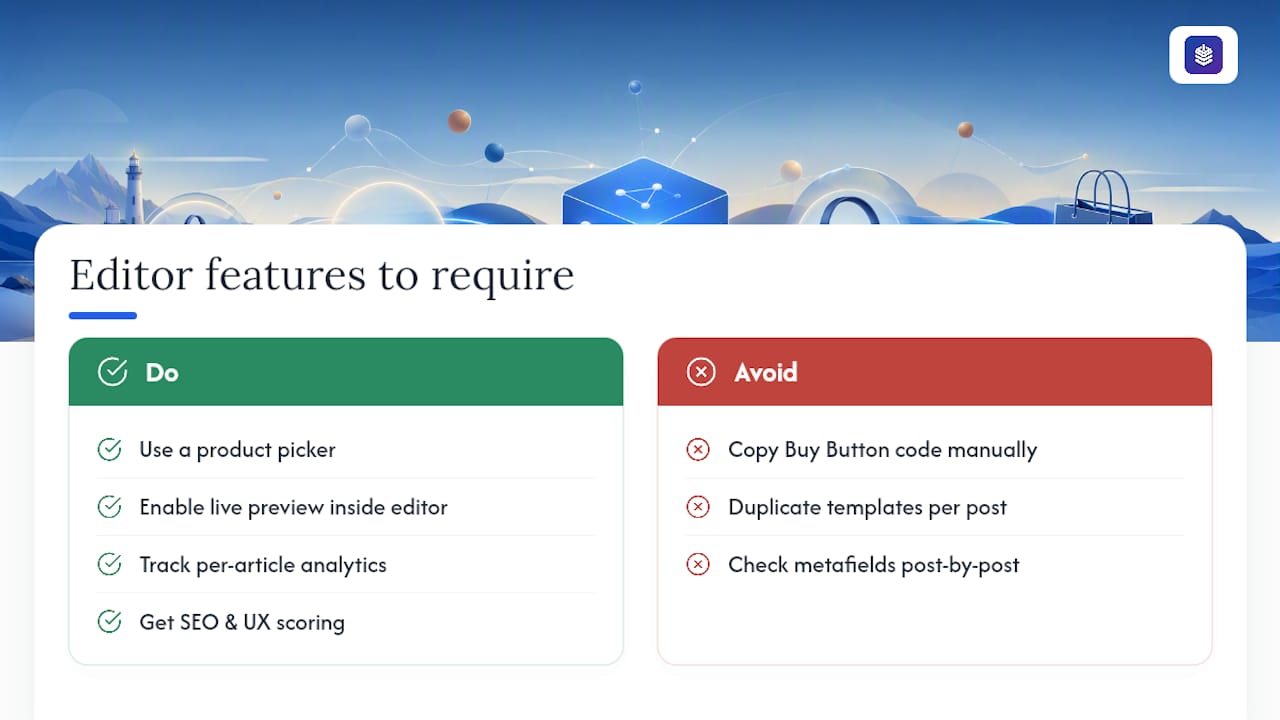
Inside the editor, you can get product references, SEO and UX scoring while you write, AI-generated drafts, and per-article analytics to evaluate product embed performance.
Whatever editor you use, look for those same three things: a product picker, a live preview, and analytics tied to the article itself.
Which Method Fits Your Store?
If you embed products occasionally and don't mind updating code by hand, the Buy Button gets you there fastest. Stores that want one consistent featured product per post, with low upkeep, are better served by the metafield and template approach. If you're publishing frequently and placing multiple products across dozens of posts, an app or an integrated editor saves more time than it costs.
— Rodney
Try an Editor Built for Shopify Content and Commerce
Every method above works, but they each ask something of you: code editing for Buy Button, theme work for metafields, a separate subscription for most blog apps. BlockPress folds product embedding into the same screen where you're already writing, so there's no copy-pasting code or duplicating templates every time you want to feature something new.
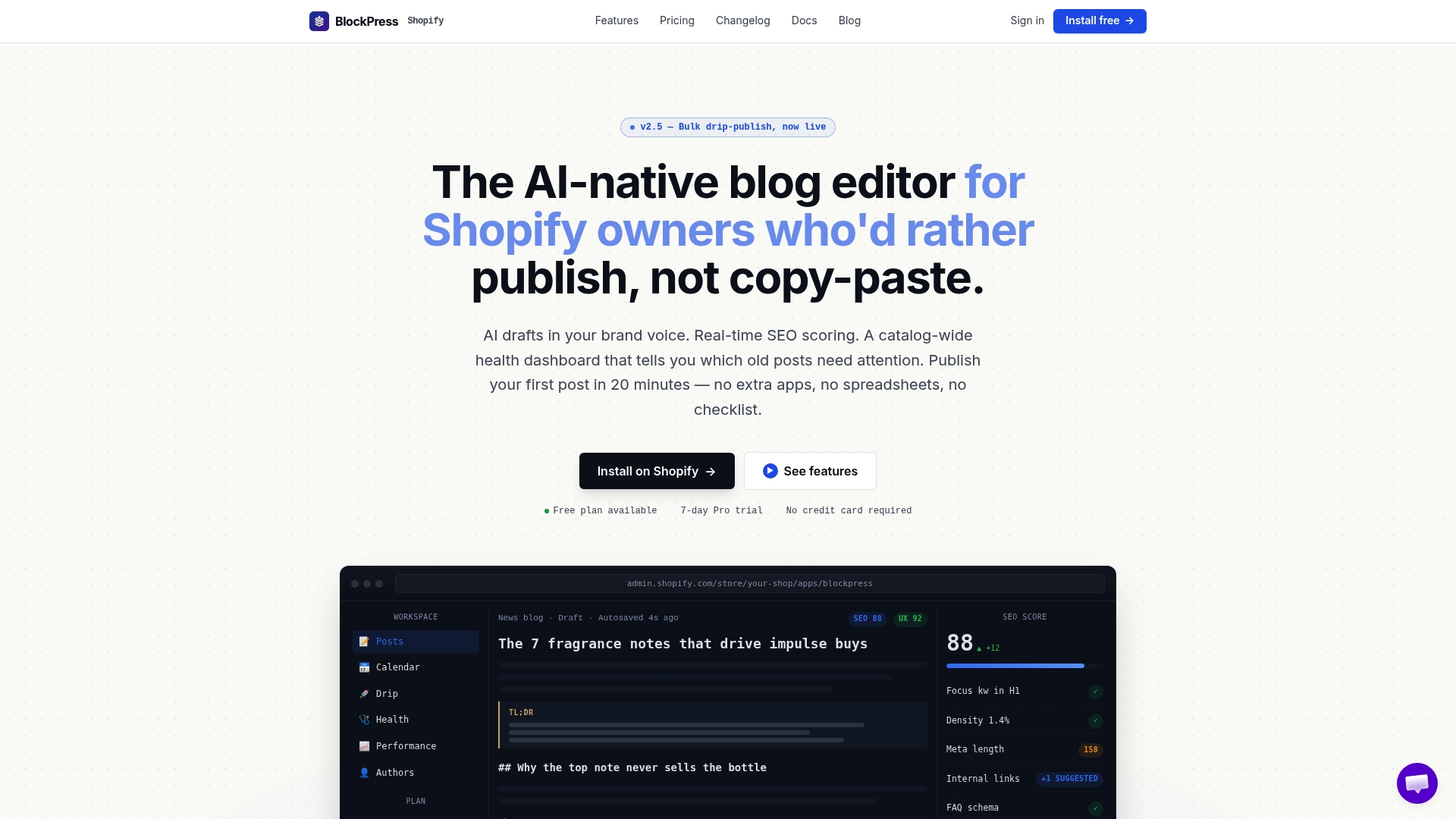
Inside the editor, you get in-editor product references, live SEO and UX scoring as you type, AI-generated drafts you can shape into your own voice, and per-article analytics that show whether a specific product placement is actually converting. Store owners who publish often use bulk drip-publishing to queue up a week of product-driven posts without touching the calendar daily. Check the BlockPress feature list to see what's included on each plan, or head to the BlockPress landing page to start a free plan and embed your first product post today.
Sources
For the exact Buy Button workflow, see Shopify's own Buy Button walkthrough. For metafield and template examples straight from merchants who built it, the Shopify Community thread on inserting products without an app is worth bookmarking.
- How to Add a Shopify Buy Button to Any Website (2026) - Shopify Indonesia
- Best Way To Insert a Product Into Blog Post (No App)
FAQ
Can You Add a Blog to a Shopify Store?
Yes. Shopify includes a native blog feature by default under Online Store → Blog posts, and you can extend it with metafields, custom templates, or a dedicated editor app like BlockPress for richer product embeds.
What Has Replaced Traditional Blogging for Ecommerce?
Blogging hasn't been replaced so much as merged with commerce. Shoppable blog posts that embed product cards, buy buttons, and add-to-cart links directly in the content now do double duty as both SEO content and a sales channel.
Do I Need an App to Embed Products in a Blog Post?
No. You can use Shopify's native Buy Button or set up a metafield-driven featured product section without installing anything, though apps offer more inline flexibility for teams publishing frequently.
Can You Realistically Earn $10,000 a Month on Shopify?
It's possible, but it depends entirely on traffic, margins, and product demand, not on any single tactic. Blog content that embeds products strategically can meaningfully increase store traffic and on-site conversions, but it's one lever among many, not a guaranteed income figure.
Does a Product Embed Slow Down My Blog Post?
It can, especially with multiple Buy Button embeds on one page, since each pulls its own script. Limiting embeds to one or two per post and lazy loading images keeps the performance hit minimal.