
Yes, you can drip-publish a Shopify blog. Shopify's native Future publishing feature lets you schedule any single post to go live automatically on a future date. What Shopify doesn't give you is a built-in way to stagger dozens of posts at once. For that, you need either a bulk-date editor or an in-Shopify editor built to handle batch scheduling from the start.
TL;DR:
- Shopify's native scheduling allows for individual post delays and bulk visibility toggles but does not support assigning different future dates to multiple posts simultaneously.
- Publishing many posts at once can hinder SEO and crawl efficiency, as search engines prefer steady, staggered content release patterns for better indexing.
- Using dedicated tools like bulk-date editors, in-Shopify AI-native editors, or automation setups can facilitate scalable drip publishing without risking broken internal links or formatting.
- Inside Shopify, BlockPress offers an all-in-one solution with bulk scheduling, AI drafts, SEO scoring, and performance analytics, streamlining large-scale drip content management.
- Small teams publishing fewer than five posts monthly can rely on native scheduling, while larger operations benefit most from integrated or external tools supporting bulk and staggered publishing.
Table of Contents
- What Can Shopify Do Natively for Scheduled Blog Publishing?
- Why Does Staggered Publishing Matter for SEO and Crawl Budget?
- How Do You Set Up a Drip-Publishing Workflow, Step by Step?
- Which Tools Fill the Gap Between Manual Scheduling and True Bulk Drip Publishing?
- How BlockPress Handles Drip Publishing Inside Shopify
- Which Drip-Publishing Approach Fits Your Team's Scale?
- What Happens to Traffic and Engagement When You Drip-Publish?
- What Do Real Drip-Publishing Rollouts on Shopify Look Like?
- Why I Favor Keeping the Publishing Workflow Inside Shopify
- Get Your Batches Scheduled Without Leaving Shopify
- Sources
- FAQ
What Can Shopify Do Natively for Scheduled Blog Publishing?
Shopify's admin handles single-post scheduling well. It just wasn't built for volume.
To schedule one post, go to Content > Blog posts, open the post you want to queue, and find the Visibility setting. Click the calendar icon, choose your future date and time, and hit Save. Shopify flips the post live automatically at the moment you specified, no manual intervention needed.
The admin also supports bulk visibility actions across your blog post list:
- Select multiple posts using the checkboxes in Content > Blog posts
- Apply Set as visible or Set as hidden to the whole selection at once
- Filter and search posts by status, author, or blog to manage large libraries
Here's the gap: Shopify's blog publishing tools don't include a table view where you can assign 20 different dates to 20 different posts in one pass. Bulk visibility toggles a post on or off. It doesn't generate a sequence of staggered future dates. If you're publishing one post a week, the native flow is fine. If you're launching a 30-post content batch, you'll be opening each post individually.
Why Does Staggered Publishing Matter for SEO and Crawl Budget?
Publishing a batch of posts all on the same day looks less natural to search engines than a steady drip, without specifying any precise speed of indexing.
Crawl budget is finite. Google allocates a certain amount of attention to your site based on its size, authority, and update patterns. When you publish 40 posts in a single afternoon, Googlebot has to decide what to prioritize, and newer or lower-authority sites often see delayed indexing as a result. Practitioners who manage large-scale content rollouts release pages in controlled batches rather than single mass launches, specifically to keep discovery and indexing moving at a pace search engines can actually process.
A sudden content surge can also read like a quality-filter trigger. Search engines watch for sites that publish unusually large volumes of new content at once, since that pattern sometimes correlates with low-effort or auto-generated spam. Staggering your batch avoids sending that signal.
Beyond the algorithmic angle, drip publishing gives you three operational wins:
- Internal links activate gradually, so you're not launching a post that links to five pages that don't exist yet
- Your sitemap updates in smaller increments instead of one large spike
- RSS subscribers get a steady trickle of new content instead of an inbox flood
How Do You Set Up a Drip-Publishing Workflow, Step by Step?
Most teams that try to drip-publish manually face challenges like using a spreadsheet and managing multiple browser tabs that complicate scheduling. Here's a workflow that avoids that.
- Decide your cadence and start date. Daily, three times a week, or weekly all work. Pick an interval you can sustain and that matches your content calendar, then set a firm start date for the batch.
- Bring every post to publish-ready standard before scheduling anything. That means a finished title, a written meta description, a compressed hero image with alt text, and internal links already placed where relevant. Scheduling an unfinished draft just delays the problem.
- Organize your batch in a table. Whether that's a spreadsheet export or a table view inside a bulk editor, list every post in the order you want it to go live. This is where you catch gaps, like two posts targeting the same keyword.
- Apply a staggered date generator. Set your start date and interval once, and let the tool assign a future date to each row in sequence rather than typing 30 dates by hand.
- Preview the full schedule before saving. Check that no two priority posts land on the same day and that your cadence doesn't stall during a planned sale or launch week.
- Save, then verify. Confirm your sitemap reflects the new URLs as each post goes live, and check Search Console over the following days to watch indexation progress.
Pro Tip: Run your first drip batch small, five to ten posts, before scaling to fifty. It's the fastest way to catch a broken internal link or a bad staggered-date rule before it repeats across your entire calendar.
Which Tools Fill the Gap Between Manual Scheduling and True Bulk Drip Publishing?
Three categories of tools solve this problem, and which one fits depends on your volume and how much you want to manage outside Shopify.
Table-view bulk-date editors add the missing piece to Shopify's native admin: a spreadsheet-style interface where you filter by blog, edit dates inline, and apply a staggered-date generator across a whole selection. These typically confirm changes with a save banner and only touch the rows you modified, which matters when you're editing a 50-post library and don't want to accidentally shift dates on posts you weren't touching.
In-Shopify AI-native editors go a step further by keeping drafting, SEO scoring, and scheduling in the same interface where you write the post. That matters operationally: export/import handoffs between a drafting tool and a scheduling tool are where broken links and formatting errors tend to creep in.
Automation and webhook setups suit high-volume publishers who want sitemap submission or indexing requests triggered automatically as each batch goes live.
Before choosing, weigh:
- Who on your team can edit dates, and whether there's an audit trail
- Whether you can preview a batch before it publishes
- Monthly cost versus hours saved on manual scheduling
How BlockPress Handles Drip Publishing Inside Shopify
BlockPress was built around the gap this article just described: Shopify handles single posts natively, but scaling a batch requires more than the admin offers.
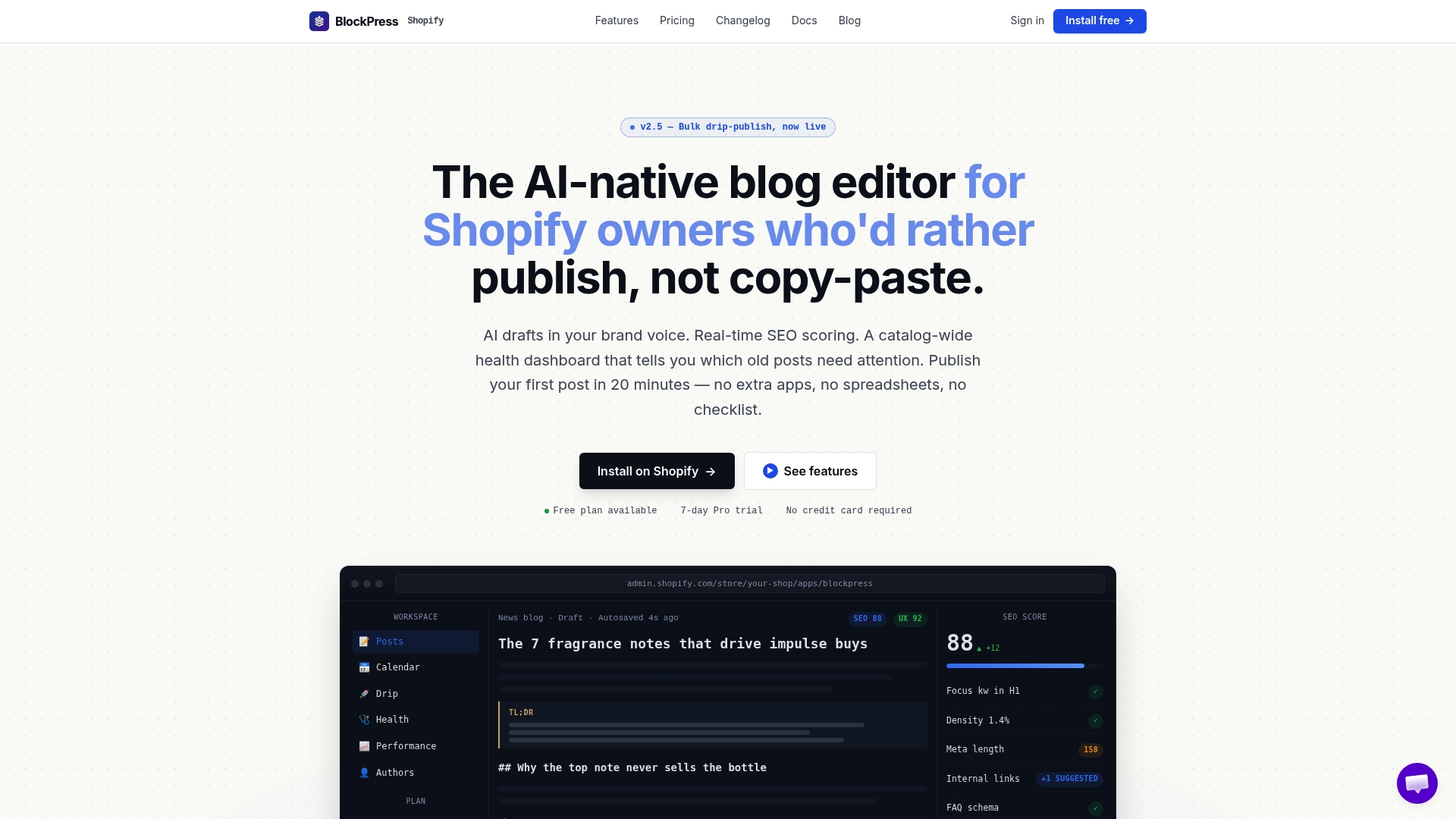
BlockPress keeps the entire workflow, drafting through scheduling, inside the Shopify admin:
- Bulk drip-publishing with a scheduled publishing calendar for whole batches at once
- AI-generated drafts in your brand voice, so batch prep doesn't start from a blank page
- Live SEO and UX scoring plus article health audits before a post goes live
- Per-article performance analytics once posts start publishing
Because drafting and scheduling live in one editor, you skip the export and reimport step where dates get mismatched or internal links break. That single detail is where most manual drip batches lose time.
Which Drip-Publishing Approach Fits Your Team's Scale?
Match your approach to your actual publishing volume, not to whatever tool looks most impressive.
- Fewer than 5 posts a month: native Shopify scheduling is enough. Set each Visibility date manually and move on.
- 5 to 50 posts a month: a bulk-date editor or table view earns its cost here. Manually opening 20 posts to set dates is where teams start losing hours every month, a threshold WAHOO's own bulk-editor customers report hitting around this volume.
- More than 50 posts a month, or you need SEO and drafting in the same place: an in-Shopify editor with bulk drip features removes the handoff friction entirely.
Whatever you pick, confirm it supports sitemap updates and gives you a way to verify indexation, ideally through Search Console, before you commit your whole content calendar to it.
Pro Tip: If you're testing a new drip workflow, run a small prototype batch first. Aim for the majority of those pages to get indexed within a month before scaling to a much larger run; that's your signal the templates and cadence are working.
What Happens to Traffic and Engagement When You Drip-Publish?
Drip publishing changes the traffic curve, not just the publishing calendar. A single mass upload creates one traffic spike as search engines crawl the batch, then a plateau while indexing catches up unevenly across posts. A staggered release instead produces a series of smaller, sequential bumps, each new post getting its own discovery window rather than competing with 29 siblings published the same day.
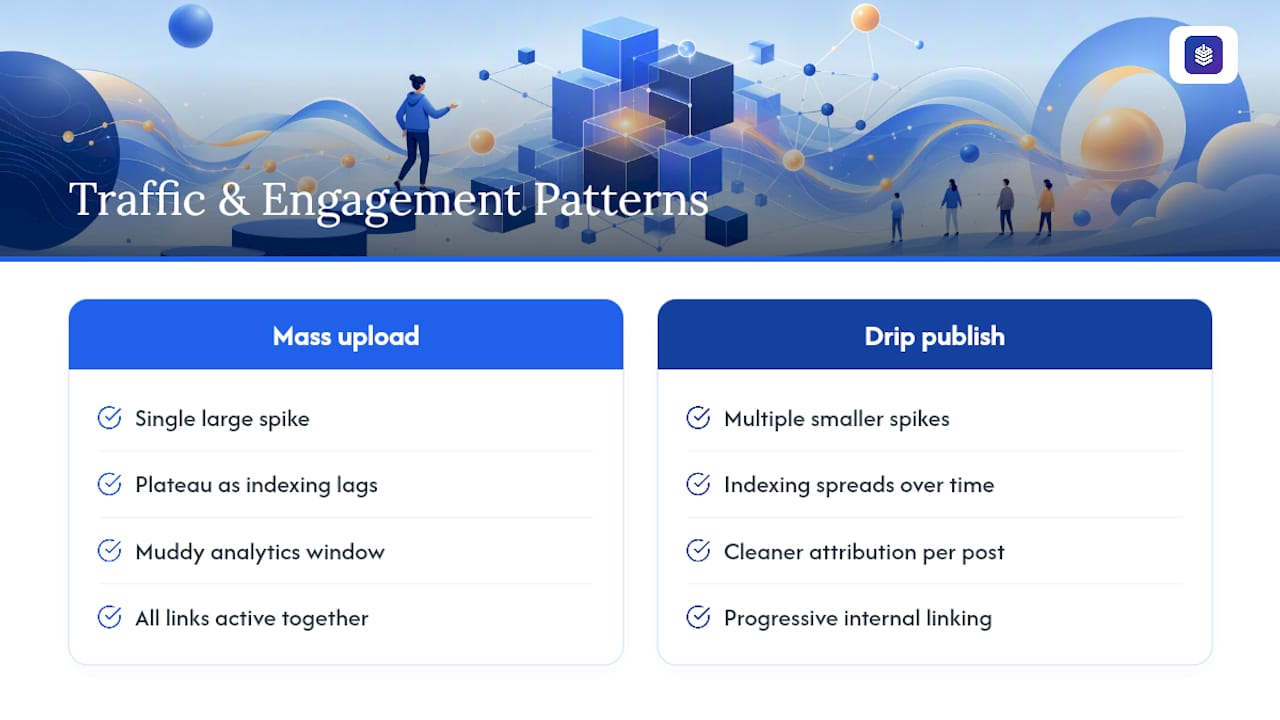
Engagement metrics tend to hold up better under a drip model too. When you space posts out, each one gets a cleaner attribution window in your analytics: you can see whether a specific post drove sessions, time on page, or add-to-cart clicks without that data getting muddied by nine other posts launching in the same 24 hours. That clarity matters if you're trying to figure out which topics or formats are actually working for your store.
There's also a compounding effect on internal linking. As each new post in a drip sequence goes live, it can link back to earlier posts in the batch, and those earlier posts can be updated to link forward. That staged linking structure, sometimes described as an active/pending/deferred link state system, lets internal link equity build progressively instead of all at once, which tends to support steadier organic growth across the full batch rather than one dominant post absorbing all the traffic.
The tradeoff is patience. A drip batch takes longer to fully mature than a single upload, since you're deliberately spreading discovery over days or weeks instead of forcing it into one moment.
What Do Real Drip-Publishing Rollouts on Shopify Look Like?
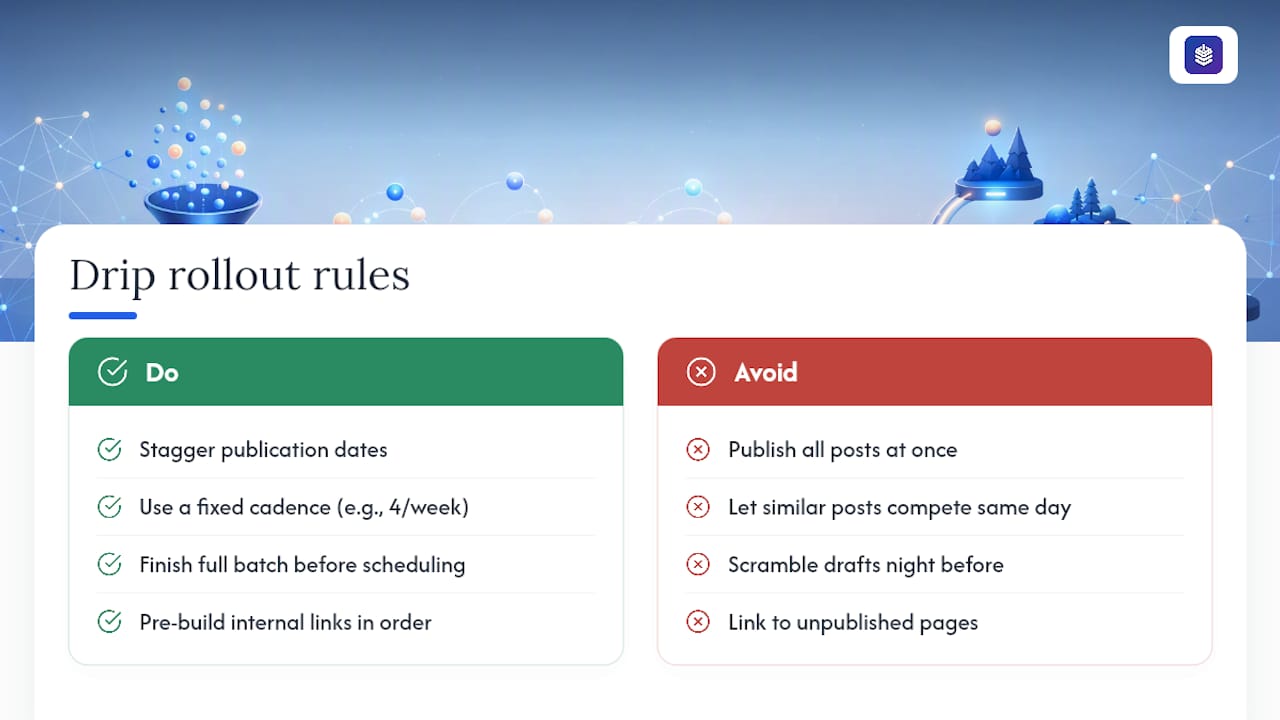
Consider a DTC skincare brand launching a 20-post ingredient glossary. Publishing all 20 at once would flood the sitemap and dilute crawl attention across pages competing for similar keywords. Instead, staggering four posts a week over five weeks lets each post get indexed before the next batch drops, and internal links between glossary terms activate in a logical order instead of all pointing to unpublished pages on day one.
A home goods retailer running a seasonal buying-guide series offers a similar pattern. Publishing "best throw blankets," "best candles," and "best home decor gifts" across three separate weeks, rather than the same afternoon, avoids the posts cannibalizing each other's early search visibility while ranking signals are still forming.
The common thread across successful drip rollouts is a fixed cadence and pre-built content. Teams that stagger dates but scramble to finish drafts the night before publishing tend to see inconsistent quality creep into later posts in the batch. Teams that finish the full batch first, then apply staggered dates on top of finished work, keep quality even across the whole sequence. The scheduling mechanics matter less than whether every post was actually ready before its date got set.
Why I Favor Keeping the Publishing Workflow Inside Shopify
Every export or handoff between tools is a place where a date, a link, or a formatting choice can quietly break. Teams that draft, score, and schedule in one place ship faster and catch fewer errors after the fact. That's the operational case for an in-Shopify editor like BlockPress: not novelty, but fewer places for a drip batch to fail.
— Rodney
Get Your Batches Scheduled Without Leaving Shopify
BlockPress puts everything this article covers into one editor: bulk drip-publishing, a scheduled publishing calendar, AI-generated drafts, live SEO and UX scoring, and per-article analytics, all inside the Shopify admin you already use. That means no exporting to a spreadsheet, staggering dates in a separate app, then reimporting and hoping nothing broke.
If you're planning your next content batch, the BlockPress features page walks through exactly how bulk drip-publishing and SEO scoring work together, and the product overview is the place to start a trial and see your own blog's health score before you schedule a single post.
Sources
FAQ
Can You Schedule a Shopify Blog Post in Advance?
Yes. Open the post in Content > Blog posts, set a future date and time under Visibility, and Shopify publishes it automatically at that moment.
Does Shopify Support Bulk Scheduling for Multiple Posts?
Shopify supports bulk visibility changes like setting several posts to visible or hidden at once, but it has no native table view for assigning staggered dates across many posts simultaneously.
What's the Best Batch Size for Drip Publishing?
Small, steady batches, often a handful of posts released daily or a few times a week, tend to balance crawl discovery against manageable editorial workloads better than one large launch.
Can BlockPress Handle Bulk Drip Publishing Inside Shopify?
Yes. BlockPress includes bulk drip-publishing and a scheduled publishing calendar alongside AI drafting and SEO scoring, all inside the Shopify admin.
Do I Need a Third-Party App to Drip-Publish at Scale?
Not necessarily. A bulk-date editor works for moderate volume, but if you also want drafting and SEO checks in the same place, an integrated in-Shopify editor removes an extra tool from your workflow.