
For most stores, the fastest and safest way to migrate a WordPress blog to Shopify is a dedicated import app like Matrixify, run through a dry-run before the real import. Blogs under about 20 posts often do fine with manual copy-and-paste, while sites with custom fields, page builders, or 500+ posts usually need a developer. Whichever path you pick, redirects and a staging test are not optional steps.
TL;DR:
- Migrating a small blog under 20 posts manually is faster and more control-friendly than using an app or hiring a developer, especially if content relies on complex formatting.
- For blogs with 20 to 500 posts, Matrixify offers a balanced solution that requires thorough preparation, including a dry-run and image management.
- Large or complex sites with custom fields, page builders, or gated content usually need a developer or a dedicated migration service to avoid formatting issues.
- Proper redirect mapping from old URLs to new Shopify equivalents is critical to preserving traffic and rankings after migration, with bulk imports recommended for accuracy.
- Post-migration SEO health depends on ongoing audits of meta data, internal links, and content structure, best facilitated by integrated Shopify SEO tools like BlockPress.
Table of Contents
- How Do You Choose Between an App, Manual Migration, or a Developer?
- How Do You Migrate a WordPress Blog to Shopify Using Matrixify?
- How Do You Manually Move a Small Blog From WordPress to Shopify?
- When Should You Hire a Developer or Migration Service Instead?
- The SEO and Redirect Checklist That Protects Your Rankings
- What Do Experienced Migrations Get Wrong the First Time?
- Should You Keep Comments and Reviews When You Migrate?
- Is Shopify a Good Blogging Platform Compared to WordPress?
- What This Migration Actually Comes Down To
- Keep Your Shopify Blog Healthy After the Move
- Sources
- FAQ
How Do You Choose Between an App, Manual Migration, or a Developer?
The right method depends almost entirely on how many posts you have and how tangled your content has gotten over the years. A blog built with Gutenberg and a handful of categories migrates cleanly. A blog stitched together with Elementor, custom post types, and a membership plugin does not.
Use blog size as your first filter:
- Under 20 posts: manual copy-and-paste is realistic and often faster than configuring an app.
- 20 to 500 posts: a migration app such as Matrixify is the sweet spot, balancing speed with control.
- 500+ posts, or anything with custom fields, page-builder markup, multiple languages, or gated content: bring in a developer or a managed migration service.
Complexity signals matter more than raw post count. If your posts rely on shortcodes, nested page-builder blocks, custom taxonomies, or content locked behind memberships, an automated import will choke on formatting even at 50 posts. Timeline-wise, manual migration for a small blog can wrap in an afternoon. An app-based migration for a few hundred posts typically takes two to four days once you count the dry-run, image cleanup, and QA pass. Developer-led migrations for large or complex sites run one to three weeks depending on how many custom fields need mapping.
Before committing to a path, run through a short checklist: How much downtime risk can you tolerate? Does this blog drive meaningful organic traffic you can't afford to lose for even a week? How much time can your team actually dedicate this month? And is your budget better spent on a $20 app subscription or a developer's invoice? Answering those four questions honestly usually points you to the right method faster than any flowchart.

How Do You Migrate a WordPress Blog to Shopify Using Matrixify?
Matrixify is the most commonly referenced app for this job, and its documented workflow gives you a repeatable process instead of a guessing game. The core sequence, per Matrixify's own tutorial, runs from WordPress export through a dry-run and into a verified final import.
- Export from WordPress. Use WP All Export or WordPress's built-in Tools > Export to generate a file with your posts. Include title, content, slug, publish date, tags, categories, featured image, and Yoast SEO fields (meta title, meta description) if you're running that plugin. Skipping the Yoast fields here means rebuilding every meta description by hand later.
- Clean and rename the export file. Matrixify expects specific column headers to auto-map your data. Open the CSV and confirm your slug, publish date, and body content columns are labeled in a way the app recognizes, since a mismatched header is the single most common cause of a failed import.
- Upload to Matrixify and set the old server URL. This setting tells Matrixify where your images currently live so it can pull them across during import rather than leaving broken links.
- Enable Dry-run first. This is non-negotiable. A dry-run generates the exact import files without touching your live store, so you can inspect formatting errors, missing fields, and malformed HTML before anything goes public.
Pro Tip: Open the dry-run output in a spreadsheet and sort by the "errors" column before you look at anything else. Fixing the top five recurring error types usually resolves 80 percent of your total error count.
- Upload images to Shopify Files and map them correctly. WordPress-hosted images need to land in Shopify's file library with working references, or your posts will publish with broken image tags. This step also catches leftover inline styles or
<div>wrappers from page builders that render oddly in Shopify's theme. - Run the final import with Dry-run disabled. Once your test files come back clean, flip the switch and let Matrixify write the posts, images, tags, and SEO fields to your live blog.
- Spot-check a sample of posts. Open your five highest-traffic posts and your five oldest posts. Check that images load, tags carried over, internal links point somewhere real, and meta titles and descriptions actually populated.
Common post-import fixes include internal links still pointing to your old WordPress URLs, missing post excerpts (Shopify handles these differently than WordPress), and meta fields that imported blank because the source CSV column name didn't match what Matrixify expected. None of these are hard to fix individually, but budget an afternoon to work through them systematically rather than catching them one by one after launch.
How Do You Manually Move a Small Blog From WordPress to Shopify?
If you're under roughly 20 posts, skip the app entirely and move content by hand. It takes longer per post but gives you full control and avoids any risk of a formatting mismatch breaking your whole import.
- Back up everything first. Go to Tools > Export in WordPress and save a full WXR/XML file even if you're not using it directly. This is your safety net if anything goes wrong.
- Create your Shopify blog and new post entries. Set up the blog under Online Store > Blog Posts before you start pasting content.
- Copy content using WordPress's HTML view, not the visual editor, to avoid dragging in hidden formatting artifacts that clash with Shopify's theme.
- Upload every image to Shopify Files rather than linking back to your old WordPress media library, which you'll eventually shut down.
- Re-enter publish dates, author names, tags, meta titles, and meta descriptions manually for each post. This is tedious but ensures nothing silently drops.
- Preview on both mobile and desktop before hitting publish, since Shopify blog themes render spacing and image sizing differently than WordPress.
When Should You Hire a Developer or Migration Service Instead?
Bring in outside help once your blog has custom post types, complex taxonomies, heavy page-builder markup, or content gated behind memberships. Managed migration services like LitExtension exist specifically because these edge cases break most self-serve app workflows, and a general migration service such as Cart2Cart is another option worth comparing on scope and price.
Before hiring anyone, require these deliverables in writing:
- A full redirect CSV mapping every old URL to its new Shopify destination.
- A dry-run report showing what was tested before anything touched your live store.
- A QA checklist covering images, tags, meta fields, and internal links.
- Formal staging sign-off before the migration goes live.
Expect a timeline of one to three weeks for complex sites, with cost scaling based on post count and how much custom field mapping is involved. Always validate the finished work on a staging store before pointing your domain at it.
The SEO and Redirect Checklist That Protects Your Rankings
Redirects are where migrations go wrong, and it's rarely a formatting issue that tanks traffic. It's a missing 301. Guides across the industry converge on the same root cause: broken or missing redirects are the number one driver of post-migration traffic loss, and the fix starts with a master URL list built from your XML sitemap, a Screaming Frog crawl, and your Google Search Console index coverage report.
Once you have that master list, map every single old URL to its exact new Shopify equivalent, then bulk-import those 301 redirects through Shopify's redirect tool. Two mistakes cause most of the damage here: redirect chains (URL A redirects to B, which redirects to C) and dumping large batches of orphaned pages onto your homepage instead of their real new equivalent. Search engines read a mass homepage redirect as a sign the old content simply vanished, which can suppress rankings across the board.
Shopify's own documentation confirms that content models and URL structures differ meaningfully between the two platforms, which is exactly why blind redirects rarely work. Beyond the redirect map, re-enter or preserve your meta titles, meta descriptions, H1s, structured data, and internal links, then run a full crawl on staging before launch to catch anything that slipped through.
- Keep your staging store noindexed until launch day.
- Confirm dry-run outputs match expectations before the real import.
- Verify images and structured data render correctly on staging.
- Submit your new sitemap to Search Console the moment you go live.
- Check Search Console daily for the first two weeks, watching your top-traffic pages and existing backlinks for drops.
What Do Experienced Migrations Get Wrong the First Time?
The gotchas that trip up most first-time migrations are predictable: leftover page-builder markup rendering as raw code, Yoast fields that imported blank, internal links still pointing at your old .com/blog/ structure, and images that lose their reference the moment you disable Dry-run without re-checking the file mapping.
Operationally, assign one person as the migration owner so decisions don't get lost between departments. Schedule the actual cutover during your lowest-traffic window, and keep your WordPress install running (even if unlinked) for at least a few weeks after launch so you have a reference copy if something needs re-pulling.
Pro Tip: Once the migration is done, the real work shifts to maintenance. This is where an in-Shopify editor pays off. Tools like BlockPress surface broken links, thin meta descriptions, and missing alt text automatically instead of making you audit hundreds of posts by hand.
Should You Keep Comments and Reviews When You Migrate?
Comments rarely transfer cleanly, and that's worth planning around rather than discovering on launch day. Shopify's blog engine doesn't have a native comment import path the way WordPress does with plugins like Disqus or WP-Comments, so most migrations either drop historical comments or route new engagement through a third-party app after launch.
If your old posts have valuable comment threads, especially ones with useful customer questions and answers, export them separately before you touch anything else. Tools like WP All Export can pull comment data alongside post content, giving you an archive even if you can't auto-import it. Some merchants choose to manually re-post the most valuable comment exchanges as updates within the article body, preserving the information without needing a live comment system.
Product reviews follow a different logic entirely. If your WordPress blog posts referenced customer reviews tied to products, those reviews typically live in your review app's own database, not in the blog content itself, so they migrate independently when you move your product catalog. The blog migration and the review migration are separate projects even though they happen around the same time.
The practical move for most small and medium stores: accept that blog comment history is a low-priority casualty, communicate that clearly if customers ask, and focus your migration effort on the content and SEO signals that actually drive new traffic instead of chasing perfect comment parity.
Is Shopify a Good Blogging Platform Compared to WordPress?
Shopify's blog editor is deliberately simpler than WordPress, and that's both its strength and its real limitation. You get a clean, fast interface with no plugin conflicts and no security patching, but you lose the deep customization WordPress built its entire ecosystem around.
The biggest gap is content structure. WordPress supports custom post types, complex taxonomies, and page-builder layouts (Elementor, Divi, and similar tools) with elaborate nested designs. Shopify's blog posts are flatter by design, built around a single content structure with tags rather than a full taxonomy system. If your WordPress blog leaned heavily on custom fields or a page builder for visual layout, expect to flatten that content considerably during migration.
Shopify's advantage shows up in a different place: product integration. Linking a blog post directly to a product page, adding buy buttons inline, or pulling live inventory data into an article is native to Shopify in a way WordPress needs plugins to replicate. For a merchant whose blog exists to support sales rather than stand alone as a publishing platform, that trade is usually worth it.
For editorial-heavy sites with deep taxonomies and complex workflows, a hybrid approach is worth considering: keep WordPress running as the publishing layer and surface select posts on Shopify rather than forcing a full migration. It's not the right call for every store, but it's a legitimate option when your content operation is more sophisticated than your storefront needs it to be.

What This Migration Actually Comes Down To
Most advice on this topic overcomplicates the decision. The size-driven matrix works because it strips out the noise: count your posts, check for custom fields or page builders, and the right method becomes obvious almost immediately. Where conventional guides fall short is treating every migration like it needs a developer, or conversely, treating every migration like a five-minute app job. Neither is true, and pretending otherwise wastes either money or weeks of avoidable troubleshooting.
The part everyone underrates is the dry-run. It's the single cheapest insurance policy in the entire process, and skipping it is how a two-hour import turns into a two-day cleanup of broken images and missing meta fields. Redirect discipline runs a close second. A rushed redirect map, or worse, a mass redirect to the homepage, does more lasting damage to your rankings than almost any other mistake in this guide.
If you take one thing from this: prioritize the boring parts. Staging, dry-runs, and a real 1:1 redirect map aren't exciting, but they're what separates a migration that protects your traffic from one that quietly bleeds it for months.
— Rodney
Keep Your Shopify Blog Healthy After the Move
Getting your content onto Shopify is only half the job; leveraging Shopify SEO Automation can streamline your post-launch optimization to protect and grow your traffic. The bigger challenge is what happens in the months after launch, when meta fields need rewriting, internal links need fixing, and you're stuck auditing hundreds of posts one at a time in Shopify's default blog editor. This is what you switch to once your content has landed, giving you live SEO and UX scoring, bulk drip-publishing, and article health audits without leaving your Shopify admin.
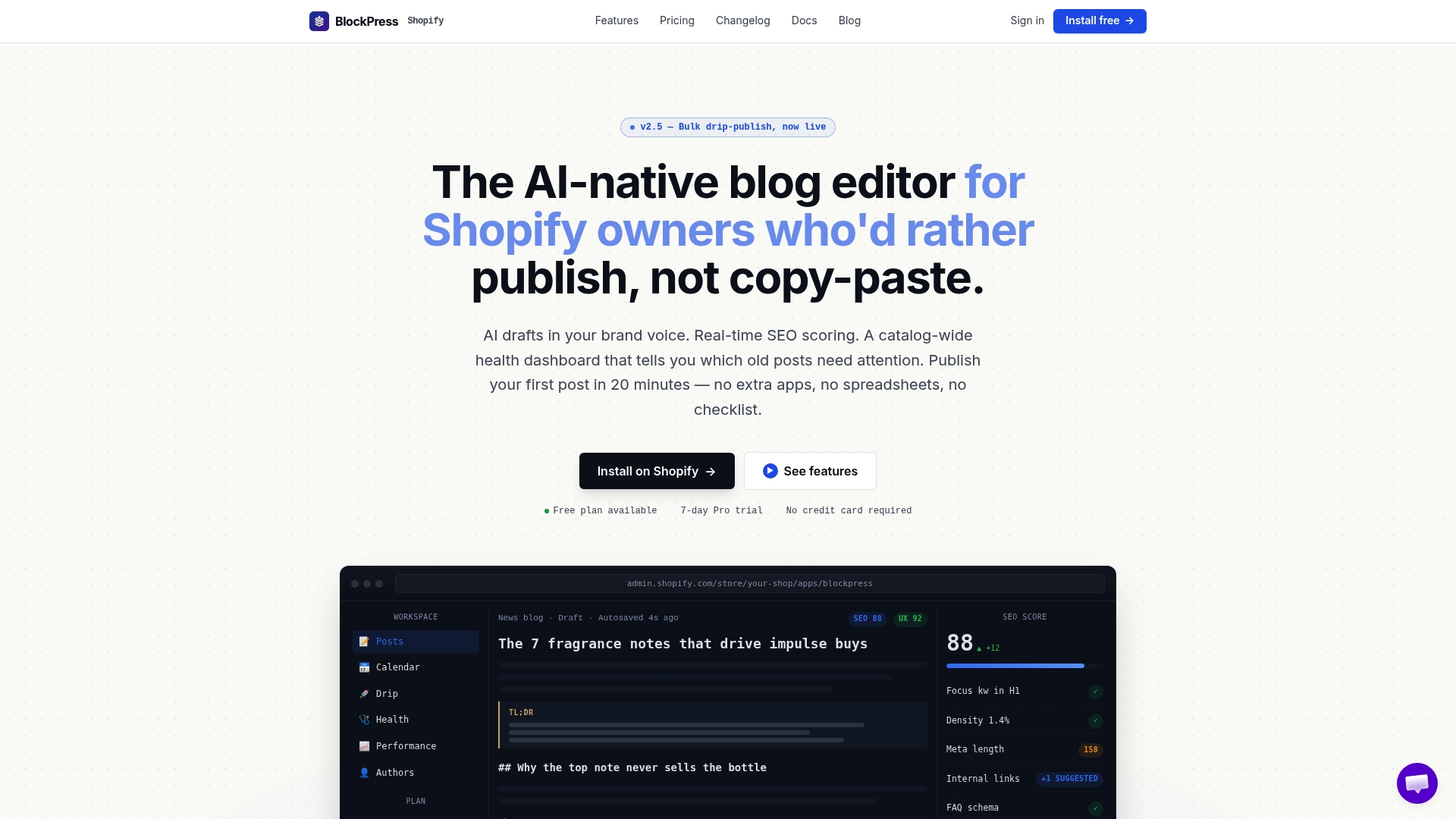
Instead of running separate apps for keyword research, SEO scoring, and content audits, this tool puts real Google keyword data, AI-generated draft support, and per-article performance analytics into one editor built directly into your store. If your migrated posts came over with thin meta descriptions or orphaned internal links, an audit inside BlockPress will surface them in minutes rather than requiring a manual crawl. Explore the BlockPress features page and start a free plan to run your first post-migration content audit today.
Sources
- Migrate Blog Posts and Pages from WordPress AllExport to Shopify — Matrixify
- WP All Export — WordPress plugin
- WordPress to Shopify migration — Refact
FAQ
Do I Need to Set Up Redirects When I Migrate?
Yes. Every indexed URL needs a mapped 301 redirect to its new Shopify equivalent, since missing redirects are the leading cause of post-migration traffic loss.
Will My Images Transfer Automatically With Matrixify?
Not entirely. You need to set the old server URL in Matrixify and then upload images to Shopify Files, since Matrixify's own tutorial treats image mapping as a distinct step from the content import.
How Long Does a WordPress to Shopify Blog Migration Take?
A manual migration for a small blog can finish in an afternoon. An app-based migration typically takes two to four days, and developer-led migrations for complex sites run one to three weeks.
Should I Keep My WordPress Site Running After Migrating?
Yes, keep it live but unlinked for a few weeks after launch. It gives you a reference copy to re-pull content or images from if anything didn't transfer cleanly.
Can I Fix SEO Metadata After the Migration Instead of During?
You can, but it's riskier since blank meta fields hurt rankings the moment your new URLs get indexed. Tools like BlockPress make post-launch metadata audits faster if you need to catch up.