
Shopify's native blog editor does not keep a version history for your posts. There's no undo trail, no draft snapshots, and no built-in restore button. If a post gets deleted, overwritten, or mangled during a theme edit, your first moves are checking cached copies, searching your own drafts and shared docs, and opening a Shopify Support ticket. The longer-term fix is adopting an editor or backup service with real autosave and version history, so recovery next time takes minutes instead of hours.
TL;DR:
- Shopify's native blog editor offers no version history or autosave, making recovery difficult if posts are deleted or overwritten accidentally.
- Searching cached Google snapshots and reviewing past drafts or shared files can help recover lost content, but success diminishes over time.
- Using a backup service or an editor with built-in version control, like BlockPress, provides faster, more reliable recovery options with minimal effort.
- Regularly testing your backup or restore process and drafting externally before publishing ensures you can quickly recover from content loss.
- Implementing a disciplined workflow and scheduled backup tests reduces the risk of losing important blog content unintentionally.
Table of Contents
- What Shopify's Blog Editor Actually Stores (and Why It's Not a Safety Net)
- What Should You Do the Moment a Post Goes Missing?
- How Do You Get Real Version History for Shopify Blog Posts?
- How Does BlockPress Handle Version History Inside Shopify?
- What Should You Set Up This Afternoon to Stop This From Happening Again?
- What a Deleted Draft Taught Me About Backups
- Write and Recover Faster With Version History Built Into Shopify
- Sources
- FAQ
What Shopify's Blog Editor Actually Stores (and Why It's Not a Safety Net)
Shopify's blog editor stores exactly what you see on the page right now: title, body, excerpt, featured image, SEO fields, and the publish date. It overwrites that record every time you hit save. There's no version ledger sitting underneath it, no timestamped history of edits, and no way to roll back to what the post looked like yesterday. The Shopify Help Center's blog post documentation covers how to edit fields and preview search listings, but it stops there. There's no export tool, no revision log, no built-in backup.
The URL structure compounds the risk. Every blog post lives under a fixed /blogs/{handle}/{post-handle} path that you can't customize away from, which some merchants find limiting and address with third-party blogging apps or subdirectory setups. Change that handle, delete the post, or swap themes without checking legacy blog templates, and the content behind that URL is gone with no native way back.
The scenarios that cause real losses are mundane, not dramatic:
- An editor deletes a draft thinking it was already duplicated elsewhere.
- A theme migration strips or hides legacy blog templates.
- Two people edit the same post and the last save wins, erasing the other's work.
- A bulk edit or app sync accidentally overwrites live content.
Shopify Community threads consistently confirm the platform is not a backup service. Merchants are expected to keep their own copies, a point the Shopify Community's backup discussion makes explicit.
What Should You Do the Moment a Post Goes Missing?
Act fast, but act in order. Recovery odds drop the longer a post sits deleted, especially once search engines recrawl the URL and register it as gone.
- Search Google for the exact title and URL. Cached snapshots and Google's index sometimes hold the full text even after the live page disappears, especially if the post was recently crawled.
- Check your own paper trail. Look through Google Docs, Notion, shared drives, Slack threads, and old emails where the post might have been drafted or pasted before publishing.
- Check social and newsletter archives. If you shared the post on Instagram, X, or in an email campaign, the copy may still exist in that platform's history, a tactic recovery guides consistently point to when no backup exists.
- Log into Shopify and open a Support ticket immediately. Provide the exact URL, the approximate deletion time, and screenshots if you have them. Shopify Support can sometimes pull content from server-side logs, though Community threads are clear that recovery isn't guaranteed.
- If you already run a backup app or a versioned editor, use it now. Open its restore panel and pull the last good version before doing anything else.
- If none of that works, start rebuilding. Gather every fragment, cached text, screenshots, old drafts, quoted excerpts from readers, and reconstruct the post as closely as possible.
Pro Tip: Before you touch anything else, take a screenshot of the Google cache or search snippet the moment you notice the post is gone. Caches refresh fast, and a snippet that's visible now might vanish in hours.
How Do You Get Real Version History for Shopify Blog Posts?
Three practical approaches cover most stores, and they differ mainly in how much manual discipline they demand versus how much they automate.
Manual workflows mean drafting every post in Google Docs or Notion first, then pasting into Shopify only when it's final. This costs nothing beyond your own time, and it works, but only if you're strict about it. Skip the habit once during a busy week, and you're back to editing live in Shopify with zero backup.
Automated backup services run on a schedule, capturing your store's content daily or weekly and storing it externally. According to backup guides like LAUNCHTIP's roundup on Shopify content backups, the better services offer version comparison and one-click restores rather than a single flat export. A vendor-neutral comparison of options, such as Baby Love Growth's look at Shopify backup plugins, is worth checking before you commit to one, since pricing and restore granularity vary widely.
Editors with built-in version history solve the problem at the source: autosave runs continuously, and every draft state is retrievable without leaving Shopify admin. That removes the lag between "something broke" and "I have it back," because you're not exporting, re-uploading, or waiting on a support ticket.
When comparing any of these, run through this checklist:
- How fast is the actual restore, minutes or hours?
- Can you restore a single article, or only the whole site?
- Does it log who changed what and when?
- What does it cost per month, and does pricing scale with your blog's volume?
- Who on your team has permission to restore, and is that logged?
One detail worth flagging: none of Shopify's own documentation promises a recovery time frame for lost content, because the platform was never built to guarantee it. That absence of a service-level commitment is exactly why the backup layer has to be yours to control.
How Does BlockPress Handle Version History Inside Shopify?
BlockPress runs inside your Shopify admin as the blog editor itself, not as a bolt-on backup tool, which means version history is built into the writing process rather than added after the fact. Every draft autosaves as you write, and previous versions stay retrievable without leaving the editor.
That matters for recovery speed. Instead of filing a support ticket and waiting, you open the article's version history, find the state you want, and restore it directly. There's no export/import cycle and no guessing which cached copy is the most current one.
BlockPress pairs that autosave layer with tools that help you decide what's worth restoring in the first place:
- Article health audits flag which posts are underperforming or outdated, useful context when you're prioritizing what to fix first after a data scare.
- Per-article performance analytics show you which posts actually drive traffic, so a restore isn't guesswork about what mattered.
- Live SEO and UX scoring let you compare a restored draft against your current SEO baseline before republishing.
- Bulk drip-publishing lets you queue up recovered or refreshed posts on a schedule rather than pushing them all live at once.
If you've just been through a scare with a missing post, the practical sequence looks like this: restore the last good draft, compare it against your current SEO score, make any needed edits, then schedule it back into your publishing calendar instead of hitting publish immediately. That extra step catches formatting issues before readers see them.
What Should You Set Up This Afternoon to Stop This From Happening Again?
None of this requires a big project. It requires a short list of habits, done once and repeated.
- Set a house rule: draft externally, paste into Shopify only when the post is final.
- Install a backup service or switch to an editor with built-in version history, then test one restore immediately to confirm it actually works.
- Keep a simple content inventory, URL, title, date last modified, and backup status, in a shared spreadsheet with one person owning it.
- Schedule a quarterly restore test alongside a content refresh review so stale posts get updated at the same time you confirm your backups are live.
Pro Tip: Test your restore process before you need it, not during an emergency. A backup you've never actually restored from is a theory, not a safety net.
What a Deleted Draft Taught Me About Backups
Losing an unpublished draft used to mean starting over from a blank page, hours of research gone in one accidental click. The lesson that stuck: a system with version history baked in turns a two-hour disaster into a two-minute annoyance. Test your restores before you need them.
— Rodney
Write and Recover Faster With Version History Built Into Shopify
There are alternatives to bolting a separate backup app onto Shopify's default blog editor: some editors offer autosave and version history inside the same editor where you're writing, drafting, and scoring content for SEO. That means no export files to manage and no second subscription just to protect your posts.
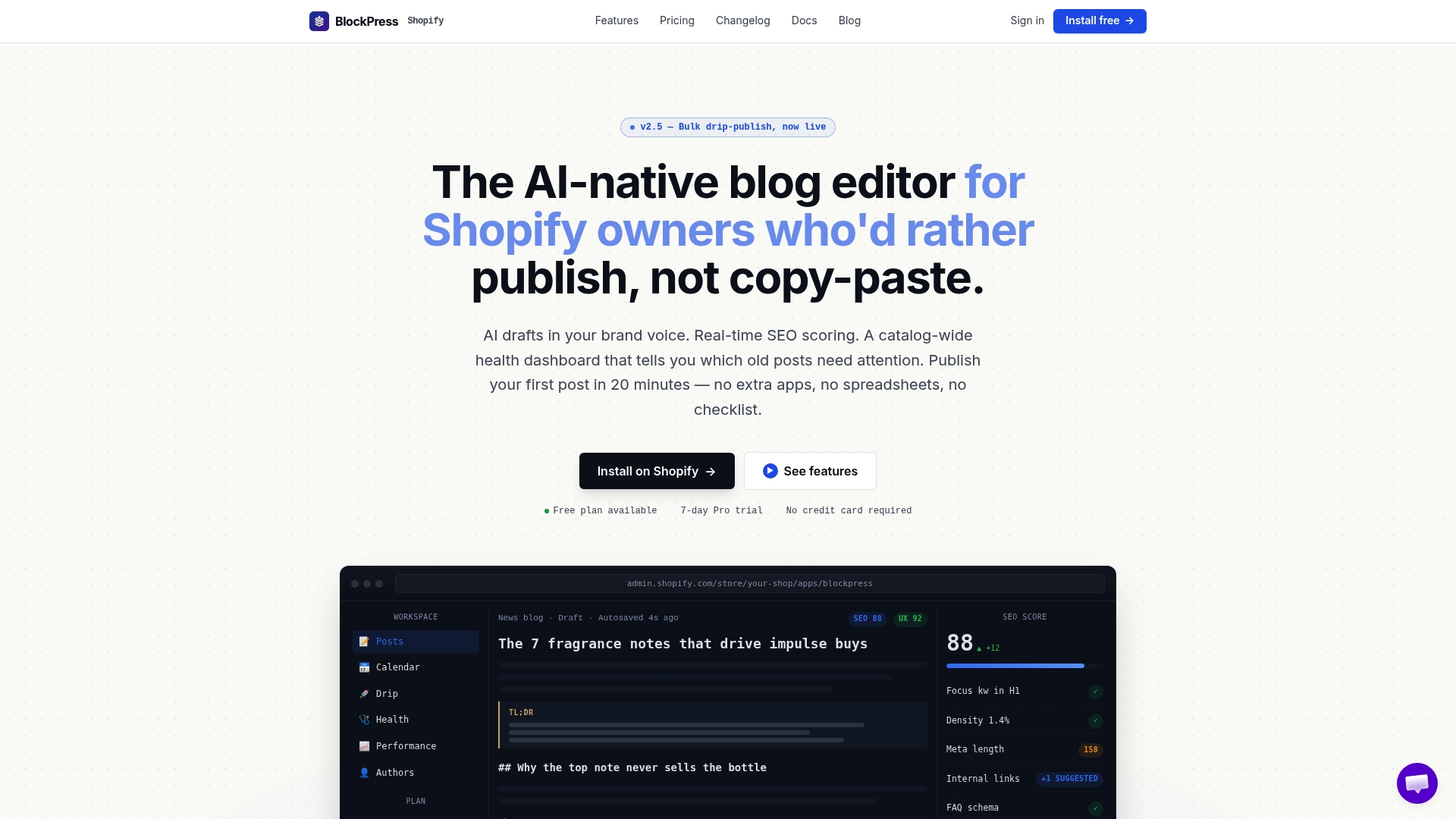
Some blog editors provide live SEO and UX scoring, AI-generated drafts, article health audits, and per-article analytics inside Shopify admin. If you want to see how autosave and version history work before committing, start with the BlockPress free plan and try restoring a draft yourself. When you're ready for higher publishing volume or bulk drip-scheduling, check the BlockPress pricing page to compare plans, or browse the changelog to see how the versioning features have evolved.
Sources
- Writing and working with blog posts — Shopify Help Center
- How can I backup and restore blog posts? — Shopify Community
- How to get back / recover deleted blog post — Shopify Community
- How to Easily Back Up Blog Posts and Pages in Shopify | LAUNCHTIP
FAQ
Does Shopify Have a Built-In Version History for Blog Posts?
No. Shopify's native blog editor saves only the current version of a post and offers no revision log, draft history, or built-in restore feature.
Can I Recover a Deleted Shopify Blog Post?
Sometimes, by checking Google's cached version of the URL, searching your own drafts and shared docs, and opening a Shopify Support ticket, though recovery isn't guaranteed.
What's the Best Way to Prevent Losing Blog Content on Shopify?
Draft outside Shopify until content is final, then use an automated backup service or an editor like BlockPress with built-in autosave and version history so every draft state is recoverable.
Does BlockPress Store Version History for Shopify Blog Posts?
Yes. BlockPress autosaves drafts as you write and keeps prior versions retrievable inside the same Shopify admin editor, without needing a separate export or backup app.
How Often Should I Test My Blog Backup or Restore Process?
Quarterly is a reasonable minimum, paired with a routine content review so you confirm both that your backups work and that older posts still reflect accurate information.