

Shopify themes output Open Graph tags by default, so your first move is checking whether they're actually correct. Set a social sharing image close to the recommended aspect ratio under Online Store > Preferences as your fallback, confirm your theme outputs a full https: image URL, and then force a re-scrape with the Facebook Sharing Debugger, LinkedIn Post Inspector, or X Card Validator. That sequence solves the vast majority of broken previews.
TL;DR:
- Using an absolute HTTPS URL and ensuring the image is close to 1200x630 pixels is crucial for correct Open Graph previews.
- Shopify defaults to the first product image regardless of variant selection, so customize metafields for specific images per product or variant.
- Duplicate
og:imagetags from theme snippets and apps often cause broken or inconsistent previews; check raw source and disable duplicates.- For large catalogs, automating OG image creation via metafields or image APIs is more scalable than manual uploads for each product.
- Platform cache can cause outdated previews, so use platform-specific debuggers to force a re-scrape and refresh shared images effectively.
Table of Contents
- How Shopify Generates Open Graph Tags (and Where the Image Comes From)
- Setting the Social Sharing Image in Shopify Admin
- Customizing Open Graph Tags in Your Theme's Liquid Code
- Automating Unique Open Graph Images Per Product
- Diagnosing Stale Previews, Duplicate Tags, and Broken URLs
- Forcing Social Platforms to Refresh Your Preview
- Quick Best-Practices Checklist for Shopify Open Graph
- Why Open Graph Images Are Worth Treating as Real Creative Assets
- Where to Verify Shopify's Open Graph Requirements
- Sources
- FAQ
How Shopify Generates Open Graph Tags (and Where the Image Comes From)
Most current Shopify themes automatically output og:title, og:description, og:image, og:type, and twitter:card in the page header. Older or heavily customized themes sometimes drop one or more of these, which is the first thing worth checking when a preview looks wrong. Open Graph tags don't influence your Google ranking, but they control the image and copy people see when a link lands in a feed or a chat, which makes them a click-through issue, not an SEO ranking one.
The image itself follows a strict priority order:
- A hard-coded image built into the theme's template code
- An image set through theme settings (often stored as
settings.share_image) - The global social sharing image set in Online Store > Preferences
- The store logo, as a last-resort fallback in some themes
One quirk trips up a lot of merchants: selecting a different product variant almost never changes og:image. Shopify defaults to the first product image in the set, regardless of which variant a shopper picked before sharing the link.
Setting the Social Sharing Image in Shopify Admin
If a page has no featured image and no theme-level override, Shopify falls back to whatever you've set as your global social sharing image. Fixing this takes a few minutes and requires no code.
- Go to Online Store > Preferences in your Shopify admin.
- Scroll to the Social sharing image section.
- Upload or replace the image, keeping it close to the recommended aspect ratio.
- Save your changes.
- If the page also appears in search results, resubmit your sitemap so Google picks up the updated metadata alongside the social crawlers.
This admin setting is the right fix when you need one consistent fallback across the whole store. Reach for theme code edits only when you want different images per template type, like product pages versus blog posts.
Customizing Open Graph Tags in Your Theme's Liquid Code
Developers who want more control need to get into the theme files directly. Look for snippets/social-meta-tags.liquid, sometimes named snippets/meta-tags.liquid, and check how it's rendered from layout/theme.liquid. Viewing raw page source (not the rendered preview) is the only reliable way to confirm what tags are actually shipping.
Shopify's own Liquid examples show the standard pattern developers copy into these snippets:
- Assign
og_title,og_url,og_type, andog_descriptionas variables near the top of the snippet - Build an
og_image_tagsblock that outputs the image URL, width, and height - Prepend
https:to anyimg_urloutput, since Shopify's filter returns a protocol-relative URL starting with//, which some crawlers reject
Shopify's documented Liquid code examples and the starter-theme snippet on GitHub both show this structure in full, including og:site_name and product price fields.
A duplicate-tag problem is one of the most common and most invisible Open Graph bugs on Shopify. If your theme snippet outputs
og:imageand an installed SEO or social app injects its own version too, the browser only honors one, and it's rarely the one you'd pick. Check raw source for repeated<meta property="og:image">lines, then disable one source.
Keep any snippet edits in your theme's version control so a rollback is one click away if a change breaks previews store-wide.
Automating Unique Open Graph Images Per Product
A single fallback image works for a homepage, but it's a weak choice for hundreds of product pages that all deserve their own preview. Metafields solve this without asking anyone to touch theme code for every new listing.
- Create a metafield under the
customnamespace with a key likeog_image. - Reference it in your snippet with
{{ product.metafields.custom.og_image | image_url: '1200x630' }}. - For collection pages, Shopify typically falls back to a collection image or the first product image, so set
og:typetowebsitethere and reserveproductfor individual listings.
At scale, manually uploading a custom image per product gets unsustainable fast. Image generation APIs, similar to Bannerbear, can build a branded preview image automatically and write the resulting URL into that same metafield through a scheduled job. That's a solid approach when a catalog has thousands of SKUs and no time to hand-craft each preview.
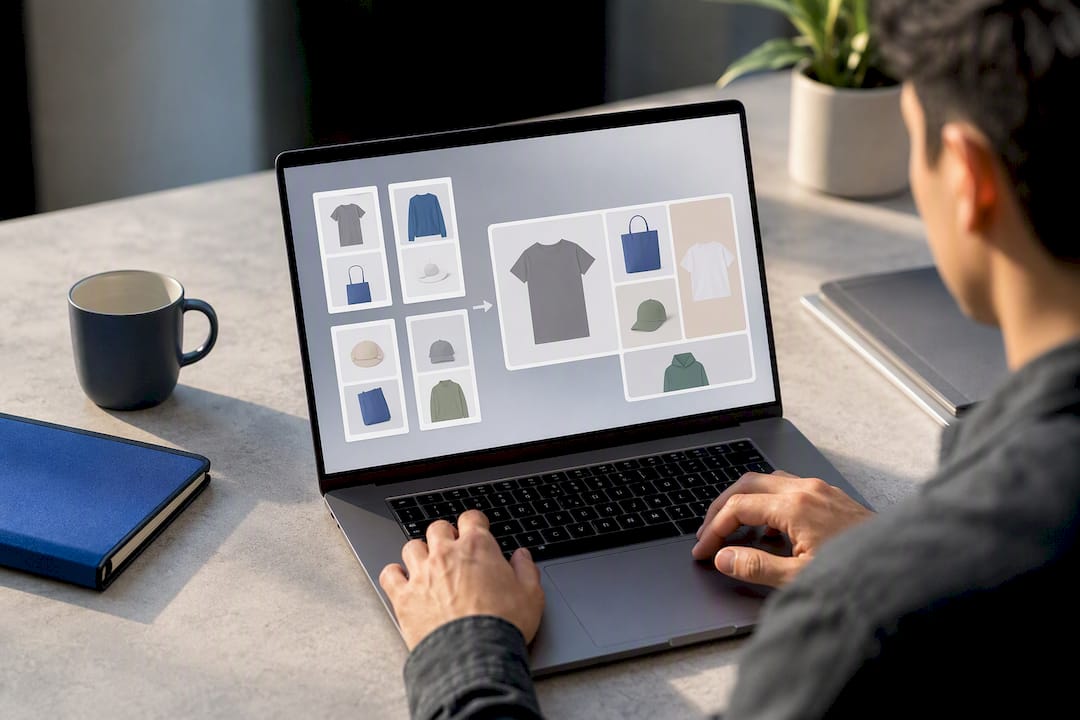
Pro Tip: If a product has wildly different variants (color, style, size) that all deserve their own image, don't force one static preview to represent all of them. A composite image showing the range performs better than picking just one variant arbitrarily.
Diagnosing Stale Previews, Duplicate Tags, and Broken URLs
Follow this sequence any time a shared link shows the wrong image or no image at all:
- View the raw page source (not the rendered page) and search for
og:image. - Confirm the URL starts with
https:rather than//, and check that it points to an image close to 1200×630 pixels. - Search the source for a second, conflicting set of
og:tags, which usually means a theme snippet and an app are both injecting metadata. - Fix whichever issue you find: correct the protocol, remove the duplicate source, or swap in a properly sized image.
- Re-run a platform debugger to force a fresh crawl, then confirm in a real share.
Social platforms cache Open Graph data aggressively, so an image swap in your theme won't show up until the platform re-fetches the page. That caching behavior, not a broken snippet, is the actual cause behind most "I fixed it but it still looks wrong" complaints.
Forcing Social Platforms to Refresh Your Preview
Each major platform has its own debugging tool, and each requires an explicit refresh action rather than waiting for the cache to expire on its own.
- Facebook Sharing Debugger: paste the URL and click "Scrape Again" to pull fresh metadata.
- LinkedIn Post Inspector: enter the URL, click "Inspect," then "Refresh" if the preview looks outdated.
- X (Twitter) Card Validator: validate the card and request a refresh of the cached data.
- Slack and WhatsApp don't have public debuggers; they inherit whatever the Open Graph crawl returns, so fixing it upstream is your only lever.
If a preview still looks stale after forcing a refresh, wait a few minutes and try again. Some CDN or caching layers hold onto old headers longer than the social platform's own cache does.
Quick Best-Practices Checklist for Shopify Open Graph
Run through this before sharing a new page or right after a theme update:
- Use an image with the recommended 1.91:1 aspect ratio and the focal point centered, since square images can render as tiny thumbnails on some platforms.
- Set
twitter:cardtosummary_large_imageso X renders the full-width preview instead of a small square. - Confirm
og:title,og:description,og:url, andog:typeare all present and populated. - For product pages, consider adding
product:price:amountandproduct:price:currencyalongsideog:typeset toproduct. - Test every page type after a theme change, force a re-scrape, and avoid running two apps that both inject social tags.
| Checklist item | Target value |
|---|---|
| Image dimensions | 1200 × 630 px (1.91:1) |
| Image URL format | Absolute https: URL |
| Twitter card type | summary_large_image |
| Required tags | og:title, og:description, og:url, og:type |
| Product page extras | product:price:amount, product:price:currency |
Why Open Graph Images Are Worth Treating as Real Creative Assets
A sloppy Open Graph image quietly taxes every share your content gets, even when the writing underneath is strong. Store owners tend to treat OG images as an afterthought, but they function as a click-through lever every time a post gets shared. A simple habit that pays off: bake the article title and author name into blog post OG images, since that consistency builds recognition across repeat shares. Tools like BlockPress's content health audits and author bio pages make it easier to track whether those visual tweaks actually move the needle on traffic and engagement.
— Rodney
Where to Verify Shopify's Open Graph Requirements
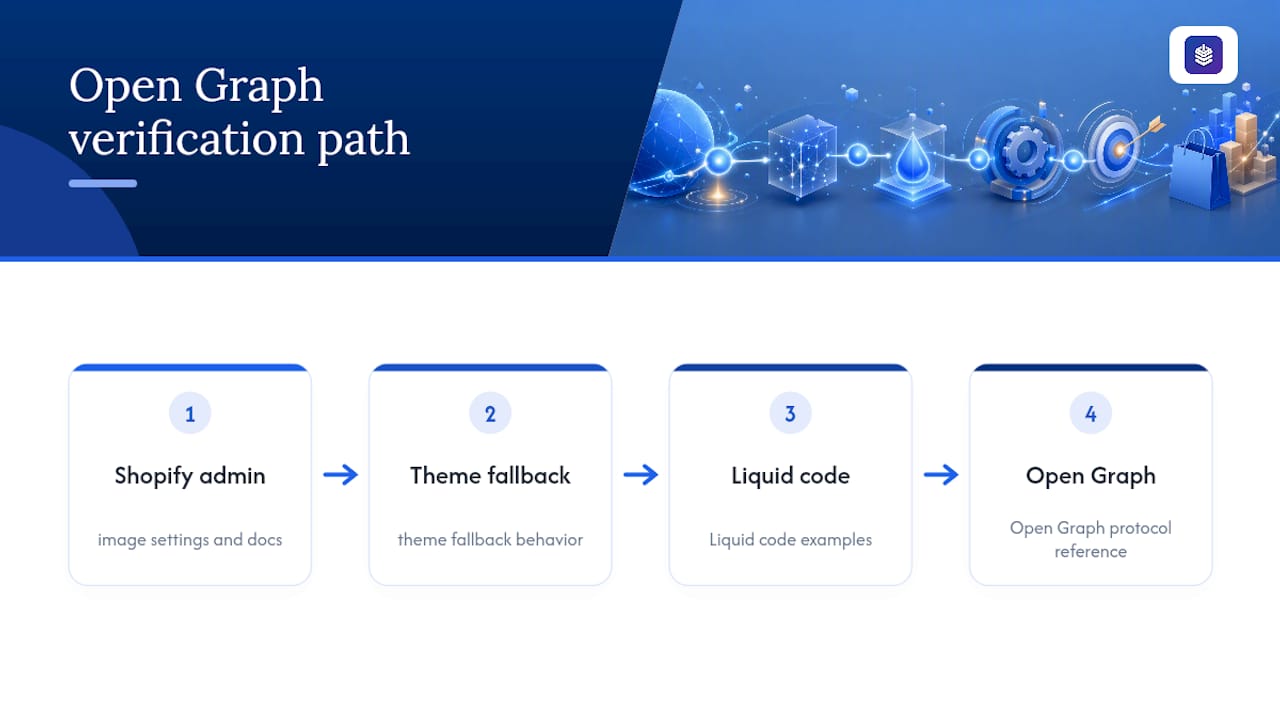
Shopify's own social media image documentation covers admin steps and theme fallback behavior directly. For code, the Liquid code examples and the Open Graph protocol reference define every property worth knowing.
Merchants automating SEO work across a larger catalog may also want to look at Shopify SEO automation tools built specifically for that scale.
Getting the technical side right is only half the job. If you want your blog content itself to actually earn shares worth previewing, BlockPress builds SEO scoring, keyword data, and performance analytics directly into Shopify's blog editor, so you can see which posts are worth the extra polish before you invest in custom OG images for them. Check the BlockPress product page or browse the changelog to see what's shipped recently.
Sources
- Choosing a social media image — Shopify Help Center
- Open Graph tags | Shopify Liquid code examples
- Shopify starter theme — social-meta-tags snippet (GitHub)
- Open Graph protocol
FAQ
Is Open Graph Free to Use on Shopify?
Yes. Open Graph tags are a free, open protocol, and most Shopify themes already generate them without any paid app or add-on required.
How Much Does Shopify Take From a $20 Sale?
Shopify's transaction fees depend on your plan and payment provider, and they're unrelated to Open Graph setup; check your specific plan's rate card in the Shopify admin billing section for an exact figure.
Does Shopify Have an Open API?
Yes, Shopify provides public APIs (including the Admin API and Storefront API) that developers use to build apps, automate metafields, and manage store data, including the metafields you'd use for custom OG images.
How Do I Use Open Graph Tags on a Website?
Add og:title, og:description, og:image, and og:type meta tags inside your page's <head>, following the Open Graph protocol specification, then verify the output with a platform debugger.
Why Does My Shopify Social Preview Still Look Wrong After I Fixed It?
Social platforms cache Open Graph data, so an update often needs a manual re-scrape through the Facebook Sharing Debugger, LinkedIn Post Inspector, or X Card Validator before the new image and text appear.