
Shopify themes automatically output rel="canonical" on every standard page, using the {{ canonical_url }} object, so most stores never need to touch it. Override the default only for specific cases like parameterized landing pages or app-generated duplicates, and do it through a URL metafield plus a conditional in theme.liquid, never a hardcoded string. If you make a change, confirm it with view-source and Google Search Console before you move on.
TL;DR:
- Most Shopify stores do not need to override canonical tags because Shopify automatically handles canonical URLs for product, collection, blog, and page pages correctly.
- Overrides are only necessary when a page’s URL genuinely differs from what should be indexed, such as parameterized landing pages or app-generated duplicates.
- Setting a custom canonical involves creating a URL metafield and editing
theme.liquidto conditionally output the desired canonical URL, with testing recommended before deployment.- Internal links, especially in navigation, breadcrumbs, and related product sections, must align with canonical URLs to prevent conflicts with Google’s indexing.
- Regularly verify canonical tags through source view, checker tools, and Search Console to ensure they match the intended URLs and fix issues like duplicate tags or broken links.
Table of Contents
- How Shopify Generates Canonical Tags By Default
- When Should You Override a Shopify Canonical Tag?
- How Do You Set a Canonical URL on Shopify Using Metafields?
- Why Is Google Ignoring My Shopify Canonical Tag?
- How Do You Check If a Canonical Tag Is Working?
- A Practitioner's Checklist For Keeping Canonicals Reliable
- What's the Right Canonical Policy for a Shopify Store?
- Keep Your Internal Links From Undermining Your Canonicals
- Sources
- FAQ
How Shopify Generates Canonical Tags By Default
Every core page type on Shopify gets a canonical tag automatically, and the URL it points to is always the clean, "handle" version of that page. Product pages canonicalize to /products/{handle}, collection pages to /collections/{handle}, blog posts to /blogs/{blog-handle}/{article-handle}, and standard pages to their own slug. The homepage canonicalizes to the root domain.
This runs through the canonical_url object, which Shopify's theme documentation confirms is designed to return the correct canonical URL for whatever page is currently rendering. Most themes include {{ canonical_url }} inside the <head> tag in theme.liquid, and that single line handles the entire store.
The part merchants worry about most, collection-aware product URLs, is already solved. When a shopper reaches a product through a collection path like /collections/summer/products/sun-hat, or through a variant query string like ?variant=123456, Shopify still canonicalizes back to the base product URL at /products/sun-hat. That default behavior is exactly what keeps duplicate-content problems from stacking up across collection and product URL variations. It's one of the more underrated protections in the platform, and it works without you writing a line of code.
When Should You Override a Shopify Canonical Tag?
Override the default when a page's URL genuinely differs from the version you want indexed and Shopify's automatic mapping can't tell the difference on its own. Skip the override when Shopify's default already points where you want it, which covers the vast majority of stores.
Good reasons to override:
- Parameterized landing pages built for a specific ad campaign or UTM tracking, where you want the tag pointing to the clean version without query strings.
- App-generated pages, like a quiz result or a landing page created by a marketing app, that duplicate content already living elsewhere on your store.
- Custom configurators or marketing clones, where a design or bundle page repeats a product's content under a different URL for a limited campaign.
Cases that don't need an override: standard product variants (color, size) and collection-aware browsing paths. Shopify already handles both correctly. A Shopify Community thread on this exact question shows merchants repeatedly trying to force canonicals on variant pages, when the real fix was either leaving the default alone or applying a noindex metafield to pages that genuinely differ. If a page is a near-duplicate you want out of search entirely, a noindex tag, sitemap removal, or a 301 redirect is usually safer than bending the canonical.
How Do You Set a Canonical URL on Shopify Using Metafields?
Shopify's own tutorial lays out the supported method for overriding a canonical, and it centers on metafields rather than editing raw theme code page by page. Here's the process.
- Create a URL-type metafield in Settings > Custom Data for each page type you need to control (Products, Collections, Pages, or Blog posts). Give it a clear namespace and key, following the metafield definition steps Shopify documents.
- Populate the metafield on individual products, collections, or pages only where you actually need a custom canonical. Leave it blank everywhere else.
- Edit
theme.liquidto check for the metafield first, then fall back to the default. A simplified version of Shopify's recommended pattern looks like this:
{% assign custom_canonical = product.metafields.custom.canonical_url | default: collection.metafields.custom.canonical_url | default: page.metafields.custom.canonical_url %}
{% if custom_canonical != blank %}
  <link rel="canonical" href="{{ custom_canonical }}">
{% else %}
  <link rel="canonical" href="{{ canonical_url }}">
{% endif %}
- Deploy on a duplicate theme first. Test the specific pages you changed, keep a backup of the original
theme.liquid, and never paste in a hardcoded absolute URL string that will break the moment you rename a handle.
Pro Tip: Store the metafield value as a relative path where possible, and build the absolute URL inside the Liquid block. It saves you from a broken canonical every time Shopify's primary domain or checkout subdomain changes.
Why Is Google Ignoring My Shopify Canonical Tag?
Google treats a canonical tag as a strong signal, not a command. When your internal links, navigation, and Google's own crawl behavior disagree with your declared canonical, Google frequently picks a different URL as the one it actually indexes.
The most common culprit is internal linking. If your navigation and related-product widgets keep linking to a collection-aware path instead of the clean product URL, that repeated signal can outweigh your canonical tag. The fix is mechanical: audit your menus, breadcrumbs, and "you may also like" blocks, and point every internal link at the canonical path directly.
- Duplicate canonical tags from apps. SEO and filtering apps sometimes inject their own
rel="canonical"line without removing Shopify's default, leaving two competing tags on one page. View source, find the duplicate, and either delete it or disable the app's canonical feature. - Pagination and filter URLs. Canonicalize filtered collection views back to the clean collection URL, and decide up front whether paginated pages (
?page=2) should canonicalize to page one or carry their own canonical. - Variant pages that differ materially, like a distinct shade or bundle with its own copy and images, are better served with a noindex metafield than a forced canonical to a parent that doesn't match the user experience.
Filter and search apps are a frequent source of this problem: third-party apps commonly override or break canonical tags without a merchant noticing, so it's worth checking your canonical output right after installing any new app in that category.
How Do You Check If a Canonical Tag Is Working?
Confirming a canonical takes three levels of checking, from fastest to most authoritative.
- View-source. Right-click any page, choose "View Page Source," and search for
rel="canonical". You should find exactly one tag, pointing to the absolute URL you expect. - Canonical checker tools. A free canonical checker or small crawler will scan a batch of URLs at once and flag pages with missing, duplicate, or unexpected canonicals faster than manual spot-checks.
- Google Search Console URL Inspection. This is the only tool that tells you what Google actually chose. It shows both your "user-declared canonical" and Google's "Google-selected canonical." If the two don't match, that's your signal to fix internal links before touching the tag itself.
A Practitioner's Checklist For Keeping Canonicals Reliable
Blockpress works with enough Shopify stores to see the same pattern repeat: canonicals rarely break on their own, they break because something else on the page contradicts them.
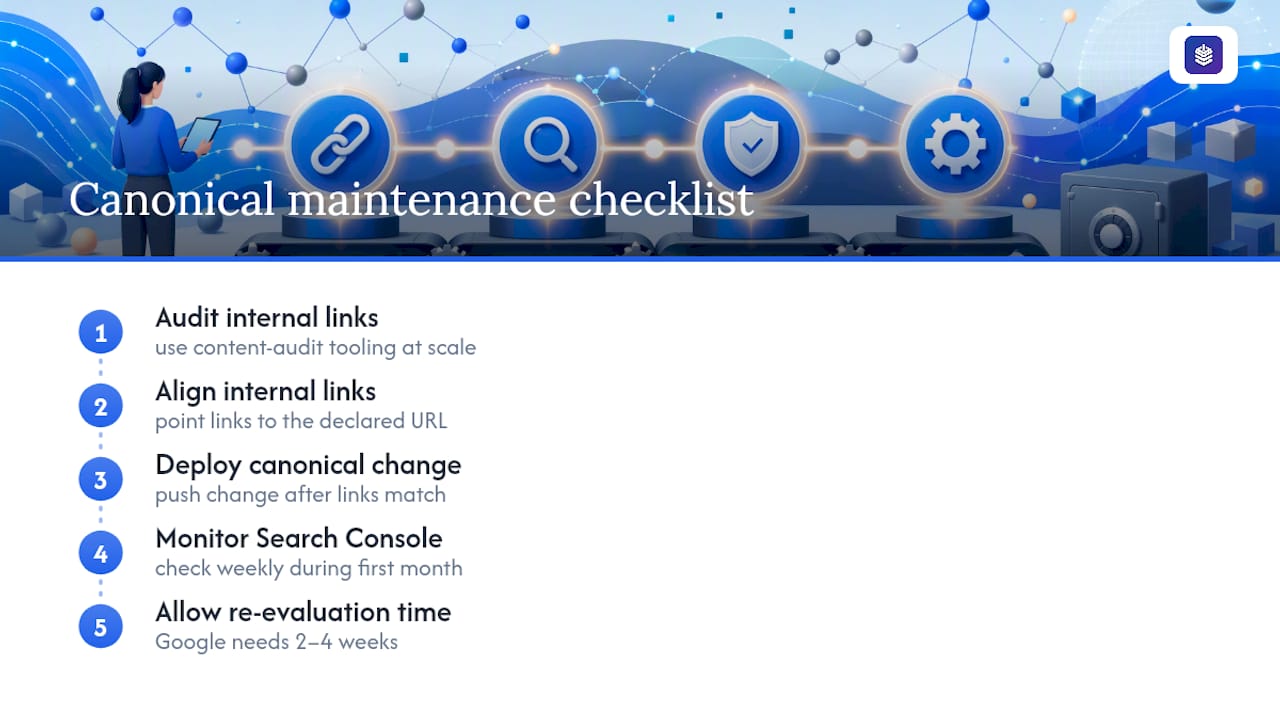
Before pushing any canonical change, align your internal links with the URL you're declaring, not the other way around. After deployment, check Search Console weekly for the first month. Google typically takes two to four weeks to fully re-evaluate a canonical after a site change, so patience matters more than a second edit. And rather than sampling a handful of pages by hand, use content audit tooling that can flag thousands of internal links pointing at non-canonical URLs in one pass, since manual review simply doesn't scale past a few hundred products.
What's the Right Canonical Policy for a Shopify Store?
Default to Shopify's built-in canonicals; they cover product, collection, blog, and page URLs correctly out of the box. Document every override in a metafield rather than hardcoding it, audit internal links whenever you make a change, and check Search Console afterward. When two pages differ enough in content or purpose, reach for noindex or a redirect instead of forcing a canonical relationship that doesn't reflect reality.
— Rodney
Keep Your Internal Links From Undermining Your Canonicals
Canonical tags only work if the rest of your site agrees with them, and the fastest way that agreement breaks down is through stale internal links buried in old blog posts. Some blog editors offer internal-link suggestions and article health audits inside the editor to help catch links pointing at collection-aware URLs or retired pages, avoiding the need for a separate crawler app.
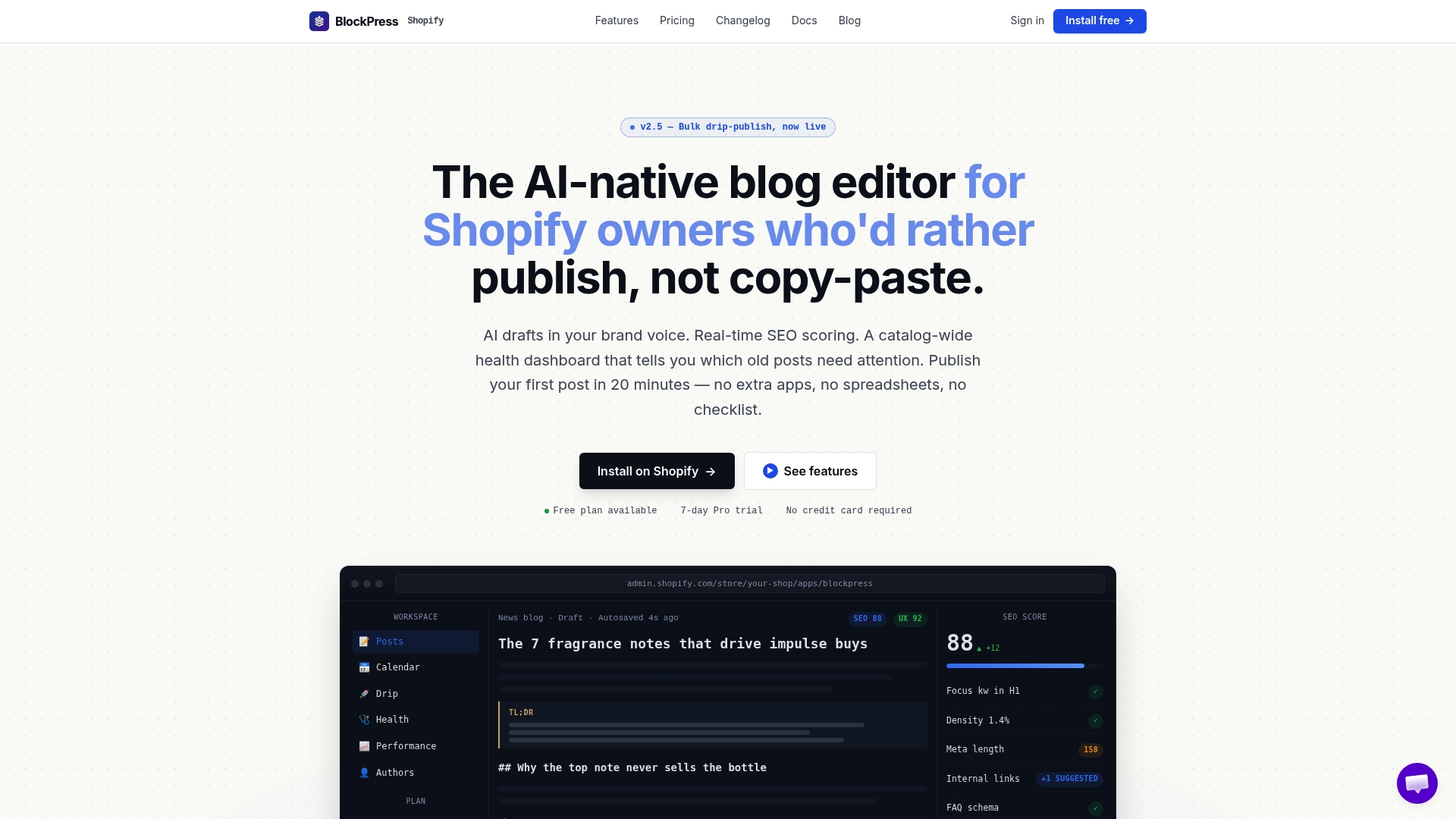
Some blog editing tools provide per-article SEO analytics, allowing you to identify which pages link to a non-canonical path before search engines notice and select an unintended URL. Instead of sampling a handful of posts by hand once a quarter, run a health audit across your entire blog and fix the flagged links in the same session. Check the Blockpress feature list to see what's included, or open Blockpress and run your first audit today.
Sources
- How To Set a Canonical URL for a Shopify Page Using Metafields
- Liquid objects: canonical_url
- How do I properly use canonical tag in a shopify page?
FAQ
What Is a Canonical Tag Example?
A canonical tag looks like <link rel="canonical" href="https://yourstore.com/products/sun-hat"> and it tells Google which URL is the master version of a page when duplicates or near-duplicates exist.
What Is the Purpose of a Canonical Tag?
It consolidates ranking signals onto one preferred URL, so duplicate or parameterized versions of a page don't compete against each other or dilute search visibility.
How Do I Set a Canonical Tag on Shopify?
Shopify sets one automatically through {{ canonical_url }} in your theme. Override it only by creating a URL metafield and adding a conditional in theme.liquid, as Shopify's own tutorial describes.
How Do I Find the Canonical Tag on a Page?
View the page source and search for rel="canonical", or use Google Search Console's URL Inspection tool to see both your declared canonical and the one Google actually selected.
Does Blockpress Help Manage Canonical Consistency?
Blockpress doesn't set canonical tags directly, but its internal-link suggestions and article health audits catch the broken or non-canonical links inside your blog content that often cause Google to override a declared canonical.